Code block



jodit-plugin-code inserts code blocks with syntax highlighting: choose a language, paste the code, check the preview and insert.
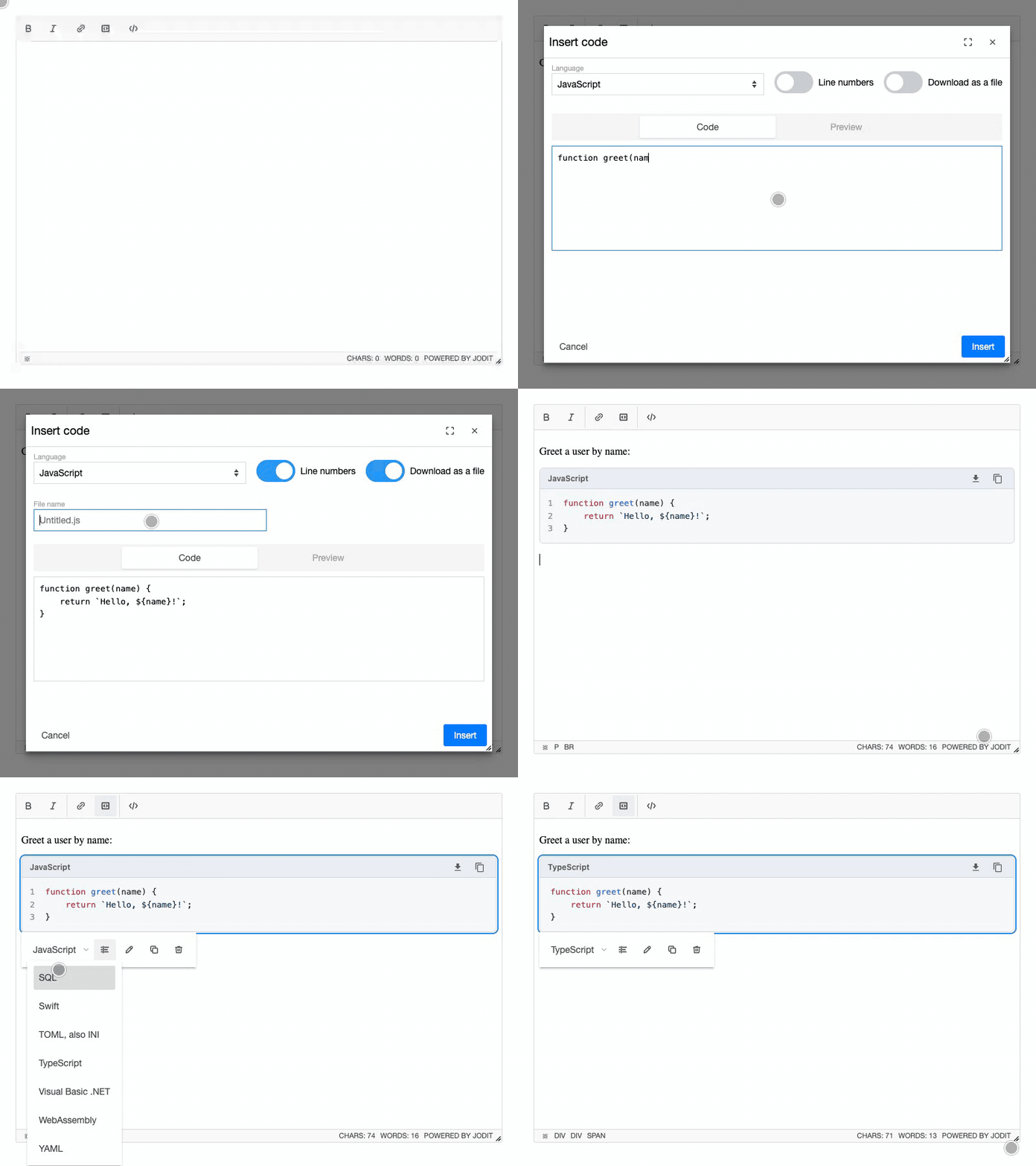
- Highlighting by highlight.js with 36 common languages included, automatic detection, and any other language on request.
- Preview on its own tab of the dialog, exactly as the block will look.
- Line numbers as an option, left out when the code is selected or copied.
- Header with the language and the copy and download buttons, on or off per block.
- Site highlighting as a switch per block: the code keeps its own colors in inline styles, or is saved as plain
<code class="language-*">inside the same frame and header, for highlight.js, Prism or another highlighter of the site. - Download as a file: a block can offer its code as a file, named by you or
Untitled.<ext>. - Looks right everywhere: every part of the block has inline styles, so it needs no CSS on the site, in an email or in a CMS.
- Customizable: the colors are CSS variables and every part has a
jodit-code__*class. - Copy and download buttons in the header of the block: in the editor, and on the site from a 2 KB runtime script.
- Editing: double-click a block, or click it and use its toolbar to change the language, switch line numbers, edit, copy or delete it. Plain
<pre>blocks become highlighted blocks when edited. - Gets along with other tools: highlight.js or Prism on the site leave the blocks alone, and next to Jodit PRO the plugin steps aside when the PRO code button is in the toolbar. See Next to other code tools.
- Translations: English, German and Russian.
Try it
Press the code button, choose a language, paste some code, look at the "Preview" tab and press "Insert". Then click the block to change its language or switch line numbers, or double-click it to edit the code.
Quick start
import { Jodit } from 'jodit';
import 'jodit/es2021/jodit.min.css';
import 'jodit-plugin-code';

Jodit.make('#editor');
On the pages that show the content, add the runtime for the copy button. Other ways to connect the plugin are in Installation; the look of the block is described in Styling.